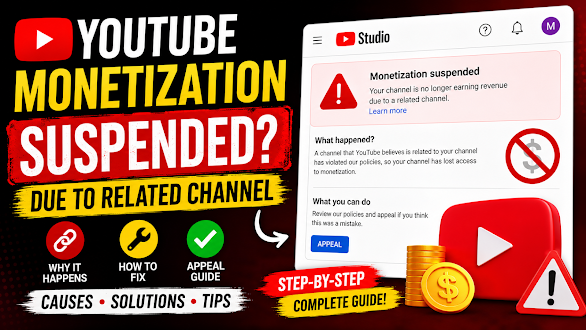
What Does “Related Channel” Mean?
A related channel is another YouTube channel that YouTube believes is connected to your account.
The connection isn’t always based on ownership alone. YouTube may associate channels using different signals, such as:
- Shared Google AdSense accounts
- The same device or browser
- Common IP addresses
- Shared contact information
- Linked Google accounts
- Similar ownership or management
- Reused or duplicate content across channels
These signals help YouTube enforce the YouTube Partner Program and prevent policy abuse.
Why Does YouTube Suspend Monetization for a Related Channel?
YouTube may suspend monetization if a related channel has violated important policies.
Common reasons include:
1. Previous Policy Violations
If another connected channel repeatedly violated YouTube’s monetization policies, your current channel could also be reviewed.
2. AdSense Suspension
If the Google AdSense account associated with a related channel has been suspended or disabled, it can affect other connected channels.
3. Reused or Duplicate Content
Uploading identical or nearly identical videos across multiple channels can trigger manual reviews.
Even if you own both channels, YouTube expects each monetized channel to provide unique value.
4. Attempting to Circumvent Enforcement
Creating a new channel after another one loses monetization in an attempt to bypass YouTube’s enforcement actions is against YouTube’s policies.
5. Suspicious Channel Networks
Channels operated in large networks with similar content, metadata, or management may receive additional scrutiny.
Signs That Your Channel Is Affected
You may notice:
- Monetization has been suspended.
- The YouTube Partner Program page mentions a related channel.
- Existing ads stop appearing.
- Your appeal option becomes available.
- You receive an email from YouTube explaining the enforcement action.

How to Fix a Related Channel Monetization Suspension
Step 1: Read the Suspension Email Carefully
Don’t immediately submit an appeal.
Read the email multiple times and understand exactly what YouTube says.
Small details often explain the real issue.
Step 2: Review All Your Other Channels
Ask yourself:
- Do you own other YouTube channels?
- Have you managed someone else’s channel?
- Have you purchased a YouTube channel?
- Have you used the same AdSense account on multiple channels?
If the answer is yes, review those channels carefully.
Step 3: Check for Policy Violations
Review your videos for:
- Reused content
- Copyright claims
- Copyright strikes
- Misleading metadata
- Spam practices
- Artificial engagement
Remove or improve content that doesn’t comply with YouTube’s monetization policies.
Step 4: Secure Your Google Account
Ensure that:
- Two-factor authentication is enabled.
- Recovery information is up to date.
- No unknown devices are signed in.
- Your account hasn’t been compromised.
Step 5: Submit an Honest Appeal
If you believe the suspension is incorrect, submit an appeal through YouTube Studio.
Your appeal should:
- Be polite and professional.
- Explain your situation clearly.
- Mention any corrective actions you’ve taken.
- Avoid emotional language or blaming YouTube.
Remember, YouTube reviewers are more interested in facts than frustration.
Mistakes to Avoid
Many creators make the situation worse by:
- Creating another monetized channel immediately.
- Purchasing an old monetized channel.
- Filing multiple appeals in a short time.
- Ignoring YouTube’s policies.
- Using fake documents or misleading information.
These actions can reduce your chances of a successful review.
Can You Reapply for Monetization?
Yes, in many cases.
If YouTube allows reapplication, improve your channel first and ensure it fully complies with the YouTube Partner Program policies before applying again.
Submitting a new application without fixing the underlying issues usually leads to another rejection.
Tips to Prevent Future Suspensions
To reduce the risk of future monetization problems:
- Create original, valuable content.
- Avoid uploading duplicate videos across channels.
- Follow YouTube Partner Program policies.
- Keep your AdSense account in good standing.
- Don’t attempt to bypass previous enforcement actions.
- Regularly review YouTube policy updates.
Frequently Asked Questions
Does this mean my channel will be terminated?
No. A monetization suspension is different from a channel termination. Your videos usually remain available unless other policy violations exist.
Can I create another YouTube channel?
You can create additional channels, but doing so to avoid an existing enforcement action may violate YouTube’s policies.
Will changing my AdSense account fix the issue?
Not necessarily. Simply changing your AdSense account doesn’t remove the underlying policy concerns if YouTube has already identified related channels.
How long does the review process take?
Review times vary. Some appeals are processed within a few days, while others may take several weeks depending on the complexity of the case.
Final Thoughts
A YouTube monetization suspension due to a related channel can be discouraging, but it doesn’t always mean the end of your creator journey. The most important step is understanding why YouTube flagged the connection and addressing any underlying policy issues instead of looking for shortcuts.
Focus on maintaining original content, complying with YouTube’s monetization guidelines, and submitting a clear, honest appeal if you believe the decision was made in error. A transparent and policy-compliant approach gives you the best chance of restoring monetization.


Leave a Reply