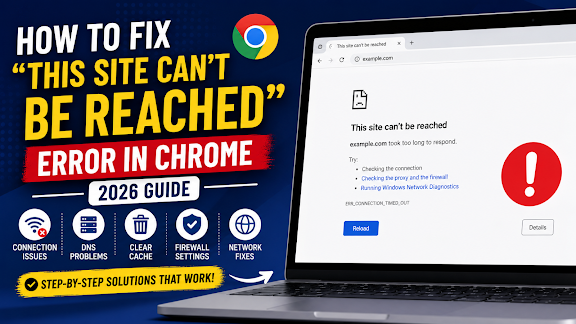
There’s nothing more frustrating than opening a website only to see the message “This site can’t be reached.” Whether you’re trying to access Google, YouTube, Facebook, or any other website, this error can interrupt your work and leave you wondering what went wrong.
The good news is that this problem is usually easy to fix. In most cases, it’s caused by network issues, incorrect DNS settings, browser cache, VPNs, or firewall configurations—not the website itself.
In this guide, you’ll learn the most effective ways to fix the “This Site Can’t Be Reached” error in Google Chrome on Windows.
What Does “This Site Can’t Be Reached” Mean?
This error appears when Chrome is unable to establish a connection with the website you’re trying to visit.
Common messages include:
- This site can’t be reached
- ERR_CONNECTION_TIMED_OUT
- ERR_NAME_NOT_RESOLVED
- ERR_CONNECTION_REFUSED
- ERR_CONNECTION_RESET
Although these errors look different, many of the troubleshooting steps are the same.
Why Does This Error Occur?
Several factors can trigger this problem, including:
- Poor internet connection
- Corrupted browser cache
- Incorrect DNS settings
- Firewall blocking Chrome
- VPN or Proxy issues
- Router problems
- Website server downtime
- Incorrect network configuration
Understanding the cause makes it easier to choose the right solution.
Method 1: Check Your Internet Connection
Before making any changes, verify that your internet connection is working.
Try opening another website.
If no websites load:
- Restart your Wi-Fi router.
- Reconnect to your network.
- Test another device.
If the issue affects only one website, the website itself may be temporarily unavailable.
Method 2: Restart Google Chrome
Sometimes Chrome encounters temporary issues.
Close every Chrome window completely.
Open Chrome again and try visiting the website.
A simple restart often resolves temporary browser glitches.
Method 3: Clear Chrome Cache
Corrupted cache files can prevent websites from loading correctly.
To clear cache:
- Press Ctrl + Shift + Delete
- Choose All Time
- Select Cached Images and Files
- Click Delete Data
Restart Chrome afterward.
Method 4: Flush DNS Cache
Windows stores DNS information to speed up browsing.
If the stored data becomes outdated, websites may fail to load.
Steps
Open Command Prompt as Administrator.
Run the following command:
ipconfig /flushdnsYou should see:
Successfully flushed the DNS Resolver Cache.Restart Chrome and test the website again.
Method 5: Change Your DNS Server
Sometimes your Internet Service Provider’s DNS server may not respond properly.
Google Public DNS is a reliable alternative.
Use:
Preferred DNS
8.8.8.8Alternate DNS
8.8.4.4Save the settings and restart your computer.
Method 6: Disable VPN or Proxy
VPN services sometimes prevent websites from loading correctly.
Temporarily disconnect your VPN and try opening the website again.
If you’re using a proxy server, disable it and test Chrome.
Method 7: Restart Your Router
Network equipment occasionally develops temporary communication issues.
Turn off your router.
Wait about 30 seconds.
Turn it back on and reconnect your device.
Method 8: Disable Extensions
Some Chrome extensions interfere with website loading.
Open:
chrome://extensionsDisable all extensions.
Restart Chrome.
Enable them one by one until you identify the problematic extension.
Method 9: Reset Chrome Settings
If Chrome’s settings have been modified, resetting them may solve the issue.
Go to:
Settings → Reset Settings
Select:
Restore settings to their original defaults
This won’t remove your bookmarks or saved passwords.
Method 10: Temporarily Disable Firewall or Antivirus
Security software occasionally blocks legitimate websites.
Temporarily disable your firewall or antivirus.
If the website opens successfully afterward, add Chrome to the allowed applications list before re-enabling your security software.
How to Check if the Website Is Down
Sometimes the problem isn’t on your computer.
Ask yourself:
- Can other people access the website?
- Does it work on your phone using mobile data?
- Does it open in another browser?
If the answer is no, the website server may be experiencing downtime.
Tips to Prevent This Error
You can reduce the chances of seeing this error by following a few best practices:
- Keep Chrome updated.
- Restart your router occasionally.
- Avoid installing unnecessary browser extensions.
- Clear browser cache every few weeks.
- Use a trusted DNS service.
- Keep Windows updated.
Frequently Asked Questions
Why does Chrome say “This Site Can’t Be Reached”?
This usually happens because Chrome cannot establish a connection with the website. Network issues, DNS problems, browser cache, or server downtime are the most common causes.
Can browser cache cause this error?
Yes. Corrupted cache files can sometimes prevent websites from loading correctly.
Is changing DNS safe?
Yes. Many users switch to trusted public DNS providers to improve reliability and browsing performance.
Will reinstalling Chrome fix the issue?
Only if the browser installation itself is damaged. In most situations, the methods above solve the problem without needing to reinstall Chrome.
Final Thoughts
The “This Site Can’t Be Reached” error may seem alarming, but it’s usually caused by common network or browser issues that can be fixed in just a few minutes. Start with simple solutions like checking your internet connection and clearing Chrome’s cache before moving on to more advanced troubleshooting steps such as flushing the DNS cache or changing your DNS server.
If none of the methods work, the issue may be with the website itself rather than your computer. In that case, waiting for the website to come back online is often the only solution.




Leave a Reply