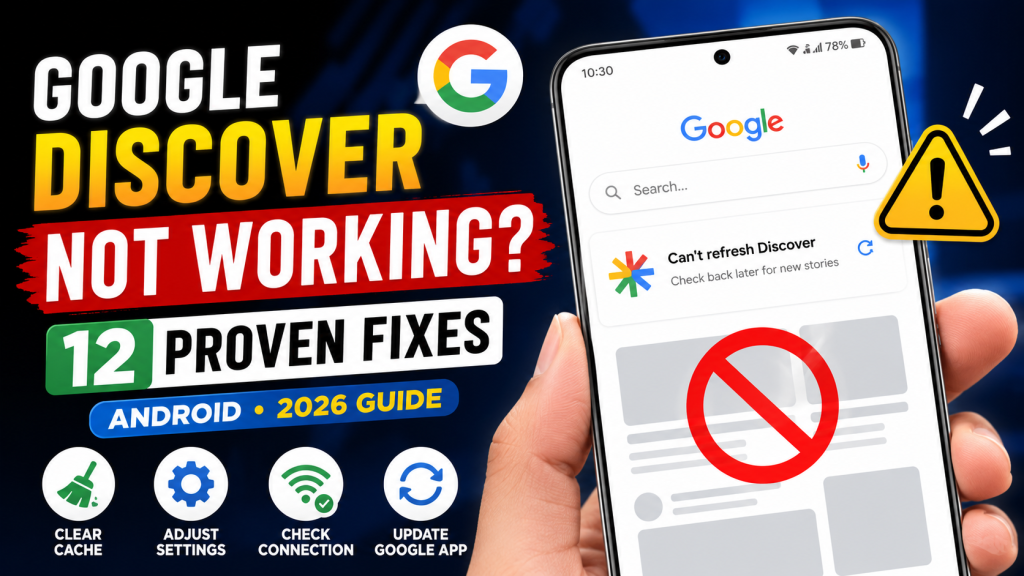
Google Discover is one of Android’s most useful features, delivering personalized news, videos, sports updates, and topics based on your interests. Instead of searching for information manually, Discover brings relevant content directly to your home screen or the Google app.
However, many Android users occasionally face an issue where Google Discover stops working, displays a blank page, refuses to refresh, or disappears completely.
The good news is that this problem is usually easy to fix. In this guide, you’ll learn the most effective methods to restore Google Discover and get your personalized feed working again.
What Is Google Discover?
Google Discover is a personalized content feed built into the Google app and available on many Android devices. It recommends articles, videos, weather updates, sports scores, and other content based on your interests and browsing activity.
If Discover isn’t working properly, you’ll often see one of these issues:
- Blank Discover feed
- “Can’t refresh Discover” message
- Feed not loading
- Missing Discover page
- No new articles appearing
Why Is Google Discover Not Working?
Several factors can prevent Discover from working correctly.
The most common causes include:
- Poor internet connection
- Disabled Discover feature
- Outdated Google app
- Corrupted cache
- Incorrect Google account sync
- Battery optimization restrictions
- VPN or DNS issues
- Google server problems
Fortunately, most of these issues can be resolved in just a few minutes.
Fix 1: Check Your Internet Connection
Before trying anything else, make sure your internet connection is stable.
Try opening:
- Google Search
- YouTube
- Gmail
If none of these apps load properly, restart your Wi-Fi router or switch between Wi-Fi and mobile data.
Fix 2: Enable Google Discover
Sometimes Discover is accidentally turned off.
To enable it:
- Open the Google app.
- Tap your profile picture.
- Select Settings.
- Tap Other Settings (or General, depending on your version).
- Make sure Discover is enabled.
Fix 3: Restart Your Android Phone
A simple restart can resolve temporary software glitches.
Press and hold the power button, then tap Restart.
Wait for your phone to boot completely before checking Discover again.
Fix 4: Clear Google App Cache
Corrupted cache files often cause Discover to stop loading.
Steps
- Open Settings.
- Tap Apps.
- Select Google.
- Tap Storage & Cache.
- Choose Clear Cache.
Do not clear app data unless necessary.
Fix 5: Update the Google App
Using an outdated version of the Google app can lead to compatibility issues.
Open the Google Play Store.
Search for Google.
If an update is available, install it and restart your phone.
Fix 6: Check Your Google Account
Ensure you’re signed in with the correct Google account.
Sometimes switching accounts or signing out can temporarily disable Discover recommendations.
Fix 7: Disable Battery Saver
Battery optimization can restrict background services required by Discover.
Go to:
Settings → Battery
Turn off Battery Saver temporarily and test Discover again.
Fix 8: Disable VPN or Private DNS
VPN services and custom DNS settings occasionally interfere with Google’s services.
Temporarily disable:
- VPN
- Private DNS
- Ad blockers
Then refresh Discover.
Fix 9: Sync Your Google Account
Google Discover depends on account synchronization.
Go to:
Settings → Accounts → Google → Account Sync
Ensure synchronization is enabled for your account.
Fix 10: Update Android
Older Android versions sometimes experience compatibility issues with newer Google app updates.
Go to:
Settings → Software Update
Install any available updates.
Fix 11: Force Stop the Google App
Restarting the Google app can solve temporary issues.
Go to:
Settings → Apps → Google
Tap:
Force Stop
Reopen the app after a few seconds.
Fix 12: Wait for Google’s Servers
Sometimes the problem isn’t on your device.
Google occasionally experiences temporary server issues affecting Discover.
If everything else appears normal, wait a few hours and try again later.
Quick Tips
To keep Google Discover working smoothly:
- Keep the Google app updated.
- Use a stable internet connection.
- Avoid aggressive battery-saving apps.
- Restart your phone regularly.
- Clear the app cache every few weeks.
- Keep Android updated.
Frequently Asked Questions
Why is my Google Discover feed blank?
This usually happens because of network issues, corrupted cache, disabled Discover settings, or temporary Google server problems.
Does clearing cache delete my Discover preferences?
No.
Clearing the cache only removes temporary files. Your Google account, interests, and preferences remain unchanged.
Can VPN affect Google Discover?
Yes.
Some VPN services or custom DNS providers may interfere with Discover’s ability to load personalized content.
Why did Google Discover disappear?
The feature may be disabled, the Google app may need an update, or your device launcher may not support Discover.
Final Thoughts
Google Discover is designed to provide quick access to personalized content, but occasional glitches can prevent it from working properly. In most cases, simple fixes such as clearing the Google app cache, updating the app, checking your internet connection, or enabling Discover in the settings are enough to restore the feed.
If none of the solutions above work, the issue may be temporary and related to Google’s servers. Waiting for a while and checking again later often resolves the problem without requiring any additional changes.
Leave a Reply