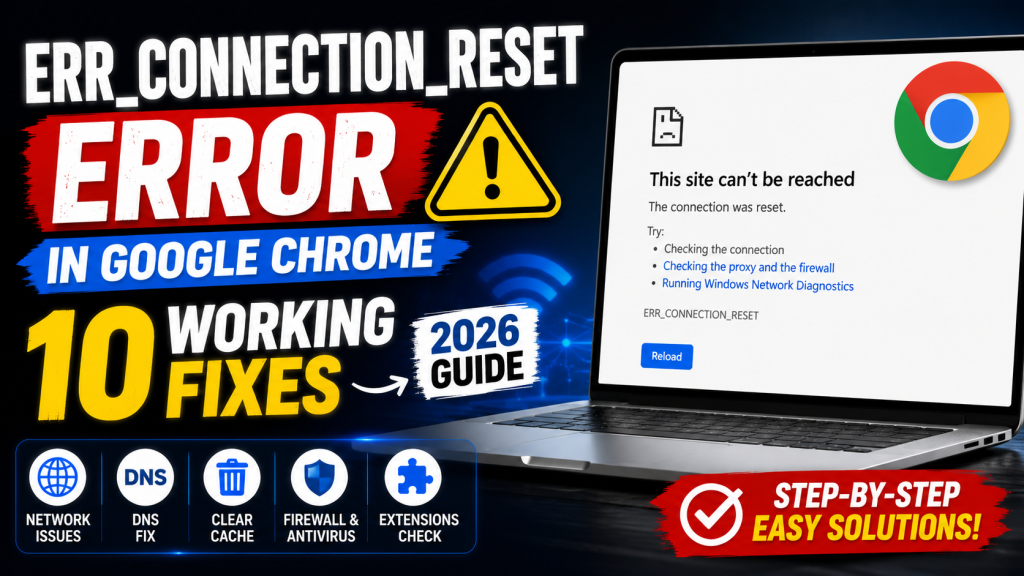
Seeing the ERR_CONNECTION_RESET error in Google Chrome can be frustrating, especially when you’re trying to access an important website. Instead of loading the page, Chrome suddenly displays a message saying the connection has been reset.
This issue can occur on Windows, macOS, and Android devices, and it’s usually caused by network configuration problems, browser settings, DNS issues, VPNs, or antivirus software.
Fortunately, you don’t need to be a technical expert to fix it. In this guide, we’ll walk through the most effective solutions that work for most users.
What Does ERR_CONNECTION_RESET Mean?
The ERR_CONNECTION_RESET error means Chrome established a connection with the website, but the connection was unexpectedly closed before the webpage could load.
Unlike a DNS error, this doesn’t necessarily mean the website is offline. Instead, something between your device and the website interrupted the connection.
Common Causes
The most common reasons include:
- Poor internet connection
- Corrupted Chrome cache
- Incorrect DNS configuration
- VPN interference
- Proxy server issues
- Antivirus or firewall blocking Chrome
- Router problems
- Network driver issues
- Browser extensions
- Website server problems
Fix 1: Check Your Internet Connection
Before changing any settings, verify that your internet connection is working properly.
Try opening:
- Google.com
- YouTube
- Wikipedia
If none of these websites load, restart your router before trying the other fixes.
Fix 2: Restart Google Chrome
Close every Chrome window completely.
Wait a few seconds.
Open Chrome again and revisit the website.
Temporary browser glitches often disappear after a restart.
Fix 3: Clear Chrome Cache
Corrupted cached files are one of the biggest causes of connection errors.
Steps
- Press Ctrl + Shift + Delete
- Select All Time
- Check Cached Images and Files
- Click Delete Data
Restart Chrome.
Fix 4: Flush DNS Cache
DNS problems frequently trigger connection reset errors.
Open Command Prompt as Administrator.
Run:
ipconfig /flushdnsThen restart Chrome.
Fix 5: Reset TCP/IP
If your network configuration is corrupted, resetting TCP/IP may help.
Open Command Prompt as Administrator.
Run these commands one by one:
netsh int ip resetnetsh winsock resetRestart your computer afterward.
Fix 6: Change DNS Server
Switch to Google’s Public DNS.
Preferred DNS
8.8.8.8Alternate DNS
8.8.4.4Save the settings and reconnect to the internet.
Fix 7: Disable VPN or Proxy
VPN services and proxy servers sometimes interrupt secure connections.
Temporarily disable them and reload the website.
Fix 8: Turn Off Antivirus Temporarily
Some antivirus programs inspect HTTPS traffic.
Temporarily disable your antivirus.
If the website loads normally afterward, add Chrome to the antivirus whitelist.
Fix 9: Disable Chrome Extensions
Faulty extensions can interfere with network requests.
Open:
chrome://extensionsDisable every extension.
Restart Chrome.
Enable them individually until you identify the problematic one.
Fix 10: Restart Your Router
Sometimes the issue is simply your router.
Turn it off.
Wait 30 seconds.
Turn it back on.
Reconnect your computer.
When Is the Problem Not on Your Side?
Sometimes the website itself is unavailable.
Check whether:
- The website opens on another device.
- It works using mobile data.
- Other users can access it.
If nobody can access the website, the server may be temporarily down.
Tips to Prevent ERR_CONNECTION_RESET
To reduce the chances of seeing this error again:
- Keep Chrome updated.
- Restart your router occasionally.
- Avoid installing unnecessary extensions.
- Keep Windows updated.
- Clear browser cache regularly.
- Use trusted DNS providers.
- Scan your computer for malware.
Frequently Asked Questions
Is ERR_CONNECTION_RESET a virus?
No.
It is a network communication error, not malware.
Does clearing cache fix ERR_CONNECTION_RESET?
Sometimes.
If corrupted browser files are causing the issue, clearing the cache often resolves it.
Can DNS cause ERR_CONNECTION_RESET?
Yes.
Incorrect or unresponsive DNS servers are among the most common causes.
Should I reinstall Chrome?
Reinstalling Chrome should be your last option.
Most users fix this problem using the methods described above.
Final Thoughts
The ERR_CONNECTION_RESET error can appear unexpectedly, but in most cases it’s caused by browser, network, or DNS issues rather than a serious hardware problem. By following the troubleshooting steps in this guide—from clearing Chrome’s cache to resetting your network settings—you can usually restore normal browsing within a few minutes.
If the issue persists after trying every method, test the website on another device or network to determine whether the problem is with your computer or the website itself.




Leave a Reply