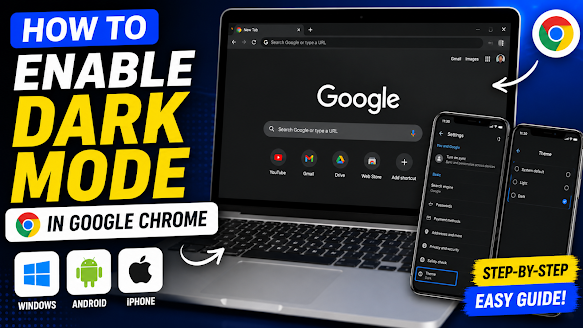
Dark Mode has become one of the most popular features in modern browsers, and Google Chrome is no exception. Besides giving Chrome a sleek appearance, Dark Mode can reduce eye strain during late-night browsing and make reading more comfortable in low-light environments.
Whether you’re using Windows, Android, or an iPhone, enabling Dark Mode only takes a few minutes. This guide walks you through the process step by step.
What Is Dark Mode in Google Chrome?
Dark Mode changes Chrome’s interface from bright white to darker shades of gray or black. While it doesn’t force every website into a dark theme, it makes the browser itself easier on the eyes.
Some websites also support their own dark themes, providing a more consistent browsing experience.
Enable Dark Mode on Windows
Step 1: Open Windows Settings
Click the Start button and open Settings.
Navigate to:
Personalization → Colors
Step 2: Choose Dark Mode
Under Choose your mode, select:
Dark
Chrome automatically follows the Windows theme.
Enable Dark Mode on Android
- Open Google Chrome.
- Tap the three-dot menu.
- Open Settings.
- Tap Theme.
- Select Dark.
Chrome will immediately switch to the dark interface.
Enable Dark Mode on iPhone
Chrome on iPhone follows the iOS appearance.
To enable it:
- Open Settings.
- Tap Display & Brightness.
- Choose Dark.
Launch Chrome again to see the new appearance.
Force Dark Mode for Websites
Some websites don’t offer a dark theme by default.
Chrome includes an experimental feature that can force dark mode on many websites.
Here’s how:
- Type chrome://flags into the address bar.
- Search for Auto Dark Mode for Web Contents.
- Enable the feature.
- Restart Chrome.
Keep in mind that experimental features may not work perfectly on every website.
Benefits of Using Dark Mode
- More comfortable browsing at night
- Reduced eye strain in dim environments
- Modern, clean appearance
- Can help conserve battery life on OLED displays
- Matches the system theme automatically
Frequently Asked Questions
Does Dark Mode improve battery life?
On OLED displays, Dark Mode can help reduce power consumption. On LCD screens, the difference is usually minimal.
Can I enable Dark Mode for websites?
Yes. Chrome’s experimental flags allow many websites to display in a darker theme, although compatibility varies.
Will Dark Mode affect browsing speed?
No. Dark Mode only changes the browser’s appearance and does not impact performance.
Final Thoughts
Dark Mode is one of the easiest ways to improve your browsing experience in Google Chrome. Whether you use a desktop, Android phone, or iPhone, enabling it takes only a few moments and can make long browsing sessions much more comfortable.
If you often browse at night or simply prefer a cleaner interface, Dark Mode is definitely worth trying.




Leave a Reply