Introduction
If Google Chrome has started loading websites slowly, displaying outdated content, or showing unexpected errors, clearing the browser cache is often one of the quickest fixes.
The cache is designed to speed up browsing by storing copies of website files on your device. Over time, however, these stored files can become outdated or corrupted, leading to issues like broken page layouts, login problems, or websites not loading correctly.
In this guide, you’ll learn how to clear the cache in Google Chrome on both desktop and mobile devices without affecting your saved passwords or bookmarks.
What Is Browser Cache?
Browser cache is a temporary storage area where Chrome saves website resources such as images, CSS files, JavaScript, and other elements.
Instead of downloading these files every time you visit a website, Chrome loads them from your device, making pages open much faster.
While this improves browsing speed, an outdated cache can sometimes prevent websites from displaying their latest version.
How to Clear Cache in Google Chrome on Windows and Mac
Follow these simple steps:
Step 1: Open Google Chrome
Launch Chrome on your computer.
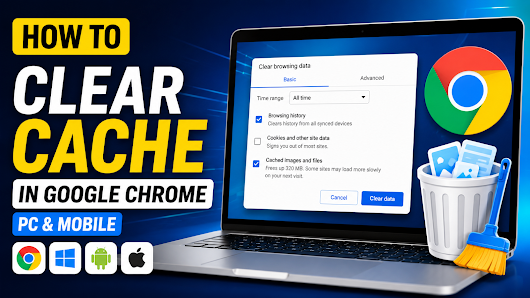
Step 2: Open Clear Browsing Data
Click the three-dot menu in the top-right corner.
Go to:
Settings → Privacy and Security → Clear Browsing Data
Alternatively, press:
Ctrl + Shift + Delete (Windows)
Command + Shift + Delete (Mac)
Step 3: Select the Time Range
Choose the period you want to clear.
Options include:
- Last hour
- Last 24 hours
- Last 7 days
- Last 4 weeks
- All time
If you’re troubleshooting a website, selecting All time is usually the best option.
Step 4: Choose What to Delete
Check the following option:
- Cached images and files
If you don’t want to sign out of websites, leave Cookies and other site data unchecked.
Your saved passwords and bookmarks will remain safe unless you manually select those options.
Step 5: Clear the Cache
Click Delete data.
Chrome will remove the cached files, and the process may take a few seconds depending on the amount of stored data.
How to Clear Cache on Chrome for Android
- Open the Chrome app.
- Tap the three-dot menu.
- Select History.
- Tap Clear Browsing Data.
- Choose a time range.
- Select Cached images and files.
- Tap Delete data.
How to Clear Cache on Chrome for iPhone
- Open Chrome.
- Tap the three-dot menu.
- Go to History.
- Tap Clear Browsing Data.
- Select Cached Images and Files.
- Confirm by tapping Clear Browsing Data.
When Should You Clear Your Browser Cache?
You don’t need to clear your cache every day. However, it’s a good idea when:
- A website isn’t loading correctly.
- Images appear broken.
- A webpage looks outdated.
- You’re experiencing login issues.
- Chrome feels slower than usual.
- You’re troubleshooting browser problems.
Does Clearing Cache Delete Passwords?
No.
If you only select Cached images and files, Chrome will not delete:
- Saved passwords
- Bookmarks
- Browsing history (unless selected)
- Autofill information
Always review the selected options before clicking Delete data.
Quick Tip
If a website still doesn’t update after clearing the cache, try opening it in Incognito Mode. If the issue disappears, the problem is likely related to cached files or browser extensions.
Frequently Asked Questions
Is clearing cache safe?
Yes. Clearing cached files is completely safe and is a common troubleshooting step.
Will clearing cache make Chrome faster?
In many cases, yes. Removing outdated or corrupted cache files can improve browser performance and resolve loading issues.
How often should I clear cache?
For most users, clearing the cache once every few months is sufficient. If you’re a web developer or frequently test websites, you may need to do it more often.
Final Thoughts
Browser cache plays an important role in improving browsing speed, but it isn’t meant to stay forever. Over time, old cached files can cause websites to behave unexpectedly or prevent updated content from loading correctly.
If Chrome starts acting strangely, clearing the cache is one of the easiest and most effective troubleshooting steps. It only takes a minute and can resolve many common browsing problems without affecting your saved passwords or bookmarks.




Leave a Reply